Connect to Xero
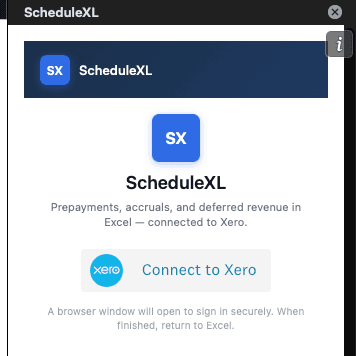
When you first open the add-in, sign in with Xero. A browser window opens for secure authorisation — return to Excel when finished.
Excel add-in · Connected to Xero
ScheduleXL imports Xero invoice lines, spreads amounts over time, prepares manual journals, and pushes them back to Xero — all from an Excel task pane.
ScheduleXL turns a multi-spreadsheet manual process into a guided workflow inside a single workbook.
Pull approved bills or sales invoices from Xero. They appear as new rows in the Schedule sheet.
Set Type, Start/End dates, and spreading method in Excel. Monthly Grid updates automatically.
Generate reclassification and monthly recognition journal lines, written to Xero_Journals for review.
Review the balance check, then push journals to Xero as Manual Journals. IDs are stamped back in Excel.

When you first open the add-in, sign in with Xero. A browser window opens for secure authorisation — return to Excel when finished.

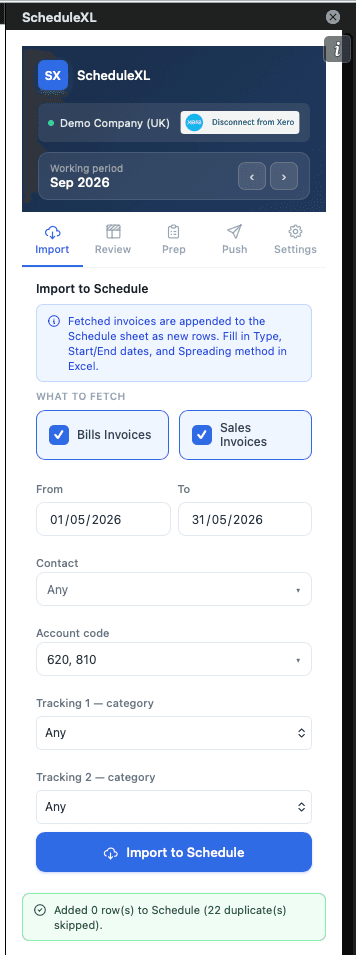
Filter by date range, account code, contact, and tracking categories. Matching invoices are appended to the Schedule sheet as new rows.

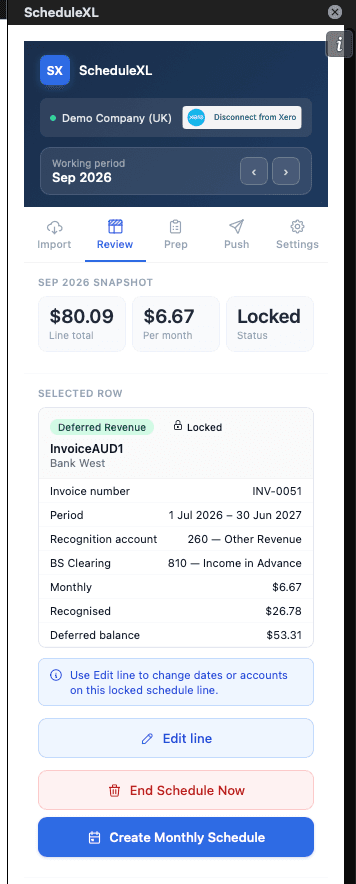
Click any row on the Schedule sheet to see a working-period snapshot and line details. Use Edit line, Remove from Schedule, or End Schedule Now depending on status — then Create Monthly Schedule when the row is ready for its first amortisation grid.

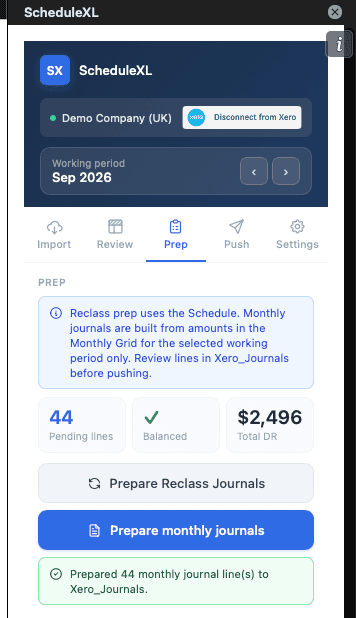
Prep builds journal lines from your Schedule and writes them to Xero_Journals. After Prepare monthly journals, the tab shows pending line count and a success confirmation.

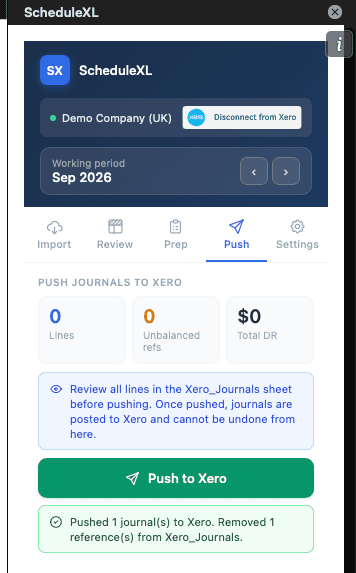
See pending line count and balance check before pushing. After a successful push, journals post to Xero and Xero_Journals is cleared — IDs are logged on Posted_Journals.

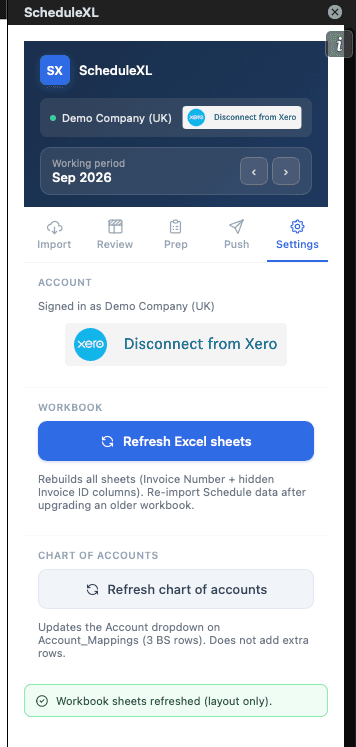
Connect or disconnect from Xero, refresh the workbook structure, and sync your chart of accounts to keep account code dropdowns up to date.
After import and setup, most day-to-day changes happen from the Review tab when you select a row on the Schedule sheet.

When: Prepayment or Deferred Revenue row that is not Completed — including Locked lines after monthly journals have been posted.

When: Status is New or Scheduled only, and no journals for that line have been posted to Xero yet.

When: Shown when Remove is not available — typically a Locked line with recognition history. Not available for Completed lines.
Download the manifest file then sideload it into Excel using the method for your version.
manifest.xml to your computer.manifest.xml and click Upload.The workbook has five sheets. The add-in reads from and writes to these directly — all your data stays in Excel.
One row per prepayment or deferred revenue item. Import adds rows here. You fill in Type, Start/End dates, and Spreading method.
Editable — blue/yellow cells are yours to type inAuto-calculated from Schedule. Shows the recognition amount for every item across every month. Read-only — do not edit directly.
Formula-driven — do not editBuilt by the Prep tab. One row per journal line. Review here before pushing. Status shows Pending → ✓ Pushed after posting.
Review before pushingAppend-only log of every pushed journal. Xero Journal IDs are stored here. Used to prevent duplicate pushes on re-run.
Append-only — do not editHolds your Xero accounts. Populated via Settings → Refresh chart of accounts. Powers all account code dropdowns in the workbook.
Updated via Settings tabMatches the legend on row 3 of the Schedule sheet.
No. Each invoice row on the Schedule sheet stores a hidden Invoice ID from Xero. On subsequent imports, the add-in checks for existing IDs and skips any already present. You can safely re-run Import after changing filters.
Reclass journals move the invoice amount from the original P&L account to the balance sheet holding account (e.g. Dr Prepayments / Cr Insurance). You only need these when the invoice in Xero was originally coded to the P&L rather than directly to the BS account.
Monthly journals are the ongoing recognition entries — they release a portion of the balance sheet amount to the P&L each period (e.g. Dr Insurance / Cr Prepayments). These are the ones you'll prepare and push every month.
No duplicate risk. After a successful push, the Xero Journal ID is written back into the Xero_Journals sheet and the row's status changes to ✓ Pushed. On any subsequent push run, already-pushed rows are automatically skipped. The Posted_Journals sheet provides a permanent audit log.
The ‹ / › arrows at the top of the task pane set the month that the Prep and Push tabs work against. When you click Prepare monthly journals, ScheduleXL generates recognition entries for that specific month. Change the period before prepping if you need to process journals for a different month — for example, if you're catching up on a prior period.
Go to the Settings tab and click Refresh chart of accounts. This fetches your current Xero chart of accounts and writes it to the Account_Mappings sheet. It only updates the account list — it does not add or remove Schedule rows.
You should start from the provided template, which has the correct sheet names and column structure the add-in expects. If you're upgrading from an older workbook, use Settings → Refresh Excel sheets to rebuild the sheet structures in place — your existing Schedule data is preserved.
Monthly — divides the total equally by the number of months in the schedule. Simplest option, best for subscriptions and fixed annual fees.
Daily — divides the total by the exact number of days in the schedule, then multiplies by the days in each calendar month. More accurate for leases and contracts where partial months matter.
Monthly Grid amounts are shown to 2 decimal places (currency cents).
Monthly spreading divides the total by the number of months in the schedule period. Daily spreading divides by total days and allocates pro-rata to each calendar month — so raw amounts can differ month to month.
Rounding uses distributed amortization: for each active month in order, the amount is round(cumulative raw through this month minus already allocated, 2). The extra cent is spread across months rather than dumped on the last month.
Example: $100 over 3 equal months becomes $33.33, $33.34, $33.33 — always summing to exactly $100. A $49 subscription over ~30 months shows as $1.63 per month on the grid.
The Monthly Grid is read-only. Regenerate amounts via Review → Create Monthly Schedule after changing dates, total, or spreading method.
All your schedule data, journal lines, and account mappings live entirely in the Excel workbook — nothing is stored on ScheduleXL servers. The only server-side state is your Xero OAuth token, which is held securely to broker API calls. No invoice data or journal content is retained after the session.
Use Excel cells for first-time setup: Type, Start/End dates, Spreading method, and accounts before Create Monthly Schedule.
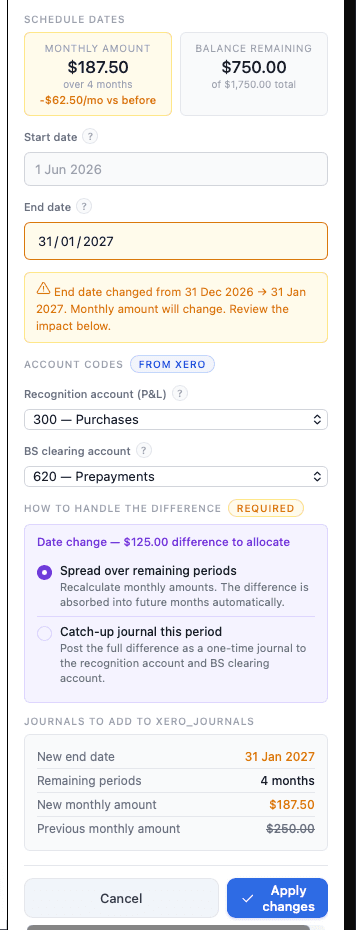
Use Edit line after the row is scheduled or locked — especially when recognition has started. The add-in recalculates the Monthly Grid, may create reclass journals when accounts change, and can add an end-date adjustment (spread or catch-up) with a preview before anything is written to Xero_Journals. Direct cell edits on locked rows are blocked in Excel; Edit line is the supported path.
Remove from Schedule appears only when the row status is New or Scheduled and there are no posted journals for that line on Posted_Journals. It deletes the Schedule row, refreshes the Monthly Grid, and clears pending journals for that invoice. Once the line is locked or has posted recognition, use End Schedule Now instead of Remove.
Remove from Schedule deletes the row entirely — for draft lines with no Xero posting history.
End Schedule Now finishes a live schedule early: the row remains on the Schedule and Monthly Grid. If there is a remaining balance, you add a Schedule Exclude Clear journal to Xero_Journals, push it from the Push tab, and the status becomes Completed. If remaining is already zero, you can mark Completed without a journal.
Reclass Status explains why reclass or adjustment journals exist for that line — for example moving the original P&L allocation to the BS clearing account, a BS or recognition account change from Edit line, an end-date catch-up, or clearing the BS account when you end the schedule early. It is descriptive text only; journal deduplication still uses the hidden Reclass Reference column.
Download the manifest, sideload into Excel, then connect to Xero from the task pane.